


.png)


Having an email address on file ensures your association and the management team can contact you with important updates (both community-wide announcements & account-specific notices). It also helps validate your identity when you reach out for support.
Here’s a quick guide to updating your email address in your account’s User Profile.
How to Update Your Email Address
Step 1: Locate Your Email Address
- Log into your property owner account.
- Navigate to the User Profile page.
- Scroll to the Notification Preference section.
- If an email is on file, it will appear at the bottom of this section.

- If no email is listed, the field will be blank.

Step 2: Update Your Email Address
- Select the Correct User
- If multiple users are listed on the account, click the name of the user whose email you want to update. The selected name will be highlighted.
- Click “E-Mail”
- At the top of the screen, click the E-Mail button.

- Enter Your New Email
- Type your updated email address in the provided field.
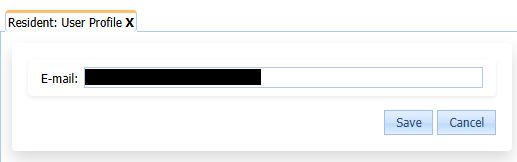
- Save Changes
- Click Save.
- Double-check under Notification Preference to confirm your new email is listed.
Alternative Method: Contact Neighbor Support
You can reach them:
- Online: Submit a request via our contact form.
- Phone: Call (678) 363-6479.
- In Person: Visit our office at 110 Evans Mill Drive, Suite 702, Dallas, GA 30157.
Our Neighbor Support specialists can update your email for you.
Important Note
As a property owner, you’re responsible for keeping your contact information current. Missing updates due to an outdated email address can lead to missed notices, compliance issues, or delayed communication.
FAQ: Updating Your Email Address
Why is it important to have an email on file?
Email ensures you receive timely updates about your account and community events. It’s also used to verify your identity when contacting support.
Can I update my email online?
Yes. Log into your property owner account, go to User Profile, click E-Mail, and enter your new address.
What if I have multiple users on my account?
Select the correct user before updating. Each user’s email must be updated individually.
Can tenants update the email address?
No. Email updates must be made by the property owner.
What happens if I don’t update my email?
You may miss important notices, which can lead to compliance issues or late fees.